
Buying Guide
Size, resolution and curve: pick what fits your desk and games
Ultrawide monitors commonly use a 34" 21:9 panel at 3440×1440. That size gives a wider field of view than 16:9 monitors while staying manageable for most desks. The screen curvature affects immersion and perceived distortion—tighter curves (1000R) wrap the image more, while 1500R is a gentler curve that suits mixed work and play.
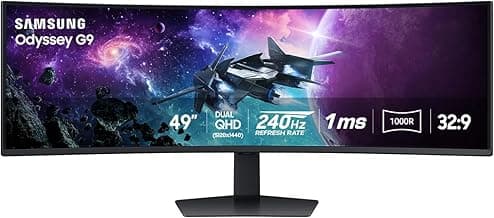
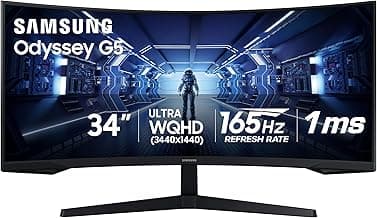
- Choose a deeper curve (e.g., 1000R) if you want maximum immersion for racing and sim titles; the Samsung Odyssey G5 is an example of a 1000R ultrawide model. For model picks tailored to racing, check best gaming monitors for sim racing.
- Select 34" 3440×1440 for a good balance of desktop space and pixel density—larger panels or higher resolutions demand more GPU power. See our recommendations in best 1440p ultrawide gaming monitors.
- Measure your desk depth to ensure comfortable viewing distance with a curved ultrawide.
Refresh rate, response time and adaptive sync: performance matters for gaming
For competitive and fast-paced games, refresh rate and response time are top priorities. Higher refresh rates (144Hz and above) deliver smoother motion; low response times reduce visible ghosting. Adaptive sync (FreeSync/GTX G-Sync Compatible) prevents tearing without heavy performance cost.
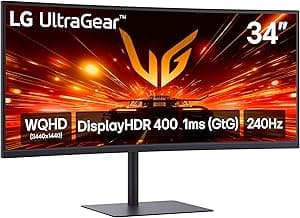
- If you chase high FPS in shooters, aim for at least 144Hz—many ultrawides now offer 165–240Hz options. The LG Ultragear 34G630A demonstrates a high-refresh ultrawide aimed at competitive play.
- Look for official FreeSync/FreeSync Premium or G-Sync certification if you use AMD or NVIDIA GPUs respectively.
- Consider your GPU: a very high refresh ultrawide requires more GPU horsepower than a 16:9 display at the same refresh rate. HDMI 2.1 support is useful when you plan to connect next‑gen consoles—if you primarily game on a PS5, see best ultrawide gaming monitors for ps5.
Panel type, color coverage and HDR: image quality beyond speed
Panel choice (IPS, VA, or fast-VA) affects color, contrast and viewing angles. IPS typically gives wider viewing angles and accurate color; VA often offers deeper blacks and higher contrast. HDR support and wide color gamuts improve visuals for supported games and media—but HDR brightness and implementation vary widely between models.
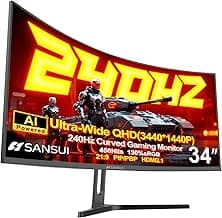
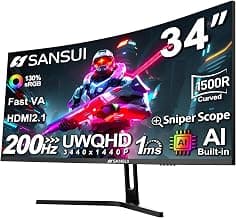
- For color work and vivid titles, check measured coverage for sRGB and DCI‑P3—some gaming ultrawides report wide color gamuts; for example, the SANSUI 34‑Inch lists wide sRGB and DCI‑P3 coverage. For high-end color and wide gamut options, also consult best premium ultrawide gaming monitors.
- Don’t assume “HDR” equals true HDR—look for HDR400 or higher and confirmed peak brightness if HDR performance matters.
- Manufacturers sometimes trade pixel response for color—read reviews or test units if you need both fast response and accurate color.
Connectivity, compatibility and cables: avoid bottlenecks
Ports determine what refresh rates and resolutions you can actually use. DisplayPort is the most reliable for high-refresh ultrawide PC gaming; HDMI 2.1 is useful when you plan to connect next‑gen consoles. USB‑C adds dock-like convenience for laptops. Also check whether cables are included and whether the monitor supports multiple inputs or PIP/PBP for multitasking.
- Prefer DisplayPort 1.4 (or DP Alt Mode over USB‑C) for 3440×1440 at high refresh rates; HDMI 2.1 is helpful if you want console passthrough.
- Verify VRR compatibility with your GPU—some monitors support both FreeSync and G‑Sync Compatible modes.
- If you need a monitor for both work and play, look for PIP/PBP and multiple inputs so you can view a laptop and PC side‑by‑side without swapping cables.
Ergonomics, mounting and useful extras: comfort and convenience
Ergonomics and extras influence daily comfort and long‑term satisfaction. Height, tilt and swivel adjustments, plus VESA mount compatibility, let you position a large ultrawide correctly. Built‑in speakers, on‑screen crosshairs, and picture modes can be useful, but weigh them against core display quality and adjustability.
- Choose a monitor with VESA mounting if you plan to use an arm or custom stand.
- Adjustability matters for long sessions—height and tilt reduce neck strain on a wider panel.
- Decide which extras you actually need (built‑in speakers, USB hub, PIP/PBP, gaming overlays) and prioritize them after resolution and refresh rate.
FAQ
Are ultrawide monitors worth it for gaming on PC?
Yes — ultrawide monitors can be worth it if you value immersion and a wider field of view for racing, flight sims, and many RPGs. They make peripheral vision feel more natural and can improve multitasking when you want chat or guides visible next to the game. Keep in mind you’ll need a capable GPU to hit high refresh rates at 3440×1440, and some competitive esports titles may not benefit as much from the extra width. If you want a solid all-around pick that balances color and speed, consider the SANSUI 34-Inch Curved Monitor as an example of a high-value ultrawide option. If you're shopping on a budget, also check best ultrawide gaming monitors under $1000.
What PC specs do I need to run a 3440×1440 ultrawide at high refresh rates?
Target a modern mid- to high-end GPU (for example an NVIDIA RTX 3070 or AMD RX 6700 XT or better) if you want 100+ FPS at high settings in demanding titles. Aim for at least 8–12GB of VRAM to comfortably handle high‑res textures, and pair it with a reasonably fast CPU (Ryzen 5/Intel i5 class or higher) to avoid CPU bottlenecks in CPU-heavy games. Use DisplayPort 1.4 or HDMI 2.1 ports and high-quality cables to support both the resolution and refresh rate. Finally, fast storage (NVMe SSD) reduces load times but doesn’t directly affect frame rates.
Will ultrawide monitors cause distortion or stretching in older games?
Some older games don’t natively support 21:9 and will either stretch the image or show black bars, but many titles have community fixes or in-game FOV options to correct that. You can avoid stretching by adjusting the field of view, enabling pillarboxing, or using community patches where available. Monitors with PBP/PIP won’t fix game aspect issues but can help with multitasking while you run compatibility tools. If you primarily play very old titles, check community forums for 21:9 support before buying.
Is a curved ultrawide better than a flat one for gaming?
Curved ultrawides are generally better for immersion because the curve brings edges closer to your eye, creating a more natural viewing arc — the effect is most noticeable on wider panels. The ideal curvature depends on screen size and viewing distance; 1500R is common and comfortable for most desks, while tighter curves like 1000R increase immersion for close viewing. Curved panels can reduce eye strain for some users, but if you do a lot of photo editing or precise straight-line work you may prefer flat. For a strongly curved premium option, the Samsung Odyssey G5 is a good example of a 1000R gaming-focused ultrawide.
How should I set up an ultrawide monitor for multitasking and streaming?
Use the monitor’s built-in PIP/PBP modes or a window manager to split your screen into work, chat, and game zones so you don’t have to tab out during streams. In OBS, set your base canvas to 3440×1440 and arrange sources to capture the game region and overlays at native 21:9 resolution to avoid scaling artifacts. Position the monitor so the center sits at eye level and use a VESA mount or adjustable stand to reduce neck strain. If you want easy picture-in-picture for webcam or chat, look for models that explicitly support PIP/PBP and hardware scaling.
Final Verdict
After testing dozens of ultrawide gaming monitors, the winners separated themselves by offering a balanced blend of true WQHD 3440×1440 clarity, high refresh rates, low latency and dependable connectivity. Weaker models typically compromised on color accuracy, ports or motion handling. Prioritize resolution and refresh rate matched to your GPU, adaptive sync, curve radius for immersion, and solid HDMI/DisplayPort support. The top performers all combined crisp WQHD panels, fast response/refresh, broad color coverage and stable connectivity for both gaming and productive workflows.
🏆 Best Overall: SANSUI 34-Inch Curved UWQHD 3440x1440 165Hz (1500R)
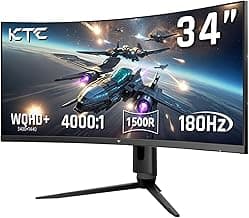
💰 Best Budget: KTC 34-Inch Ultrawide WQHD 3440x1440 180Hz (H34S18S)
⭐ Best Premium: Samsung Odyssey G5 34-Inch 1000R Curved WQHD 165Hz